01
“Let Windows manage my default printer”
Windows makes the printer you used last the default printer.
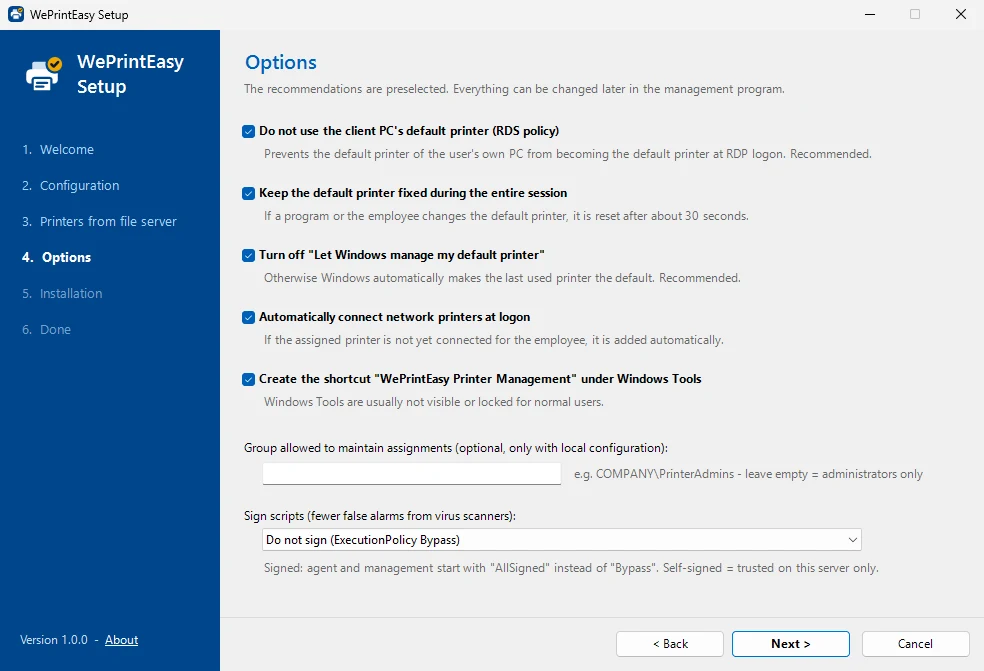
WePrintEasy: The agent turns this option off for every user (LegacyDefaultPrinterMode = 1).
For Remote Desktop Session Hosts
WePrintEasy assigns a default printer to each Active Directory user or group and sets it at every logon – and, if you want, throughout the whole session. Redirected client printers and “last used” printers no longer take over.
Windows Server 2019 · 2022 · 2025
Free · MIT licence
Video
Why the default printer keeps changing on terminal servers – and how WePrintEasy keeps it in place.
The problem
Four things move the default printer in a Remote Desktop session. WePrintEasy has an answer for each of them.
01
Windows makes the printer you used last the default printer.
WePrintEasy: The agent turns this option off for every user (LegacyDefaultPrinterMode = 1).
02
The client PC’s default printer becomes the session default – with a delay after logon.
WePrintEasy: For 2 minutes after logon the agent checks every 3 seconds and resets it. Optionally the policy fForceClientLptDef = 0 is set as well.
03
Applications or users change the default printer during the session.
WePrintEasy: Optional monitoring for the whole session puts it back (default: every 30 seconds).
04
The assigned network printer is not (yet) connected after logon.
WePrintEasy: The agent connects \\server\share automatically.
How it works
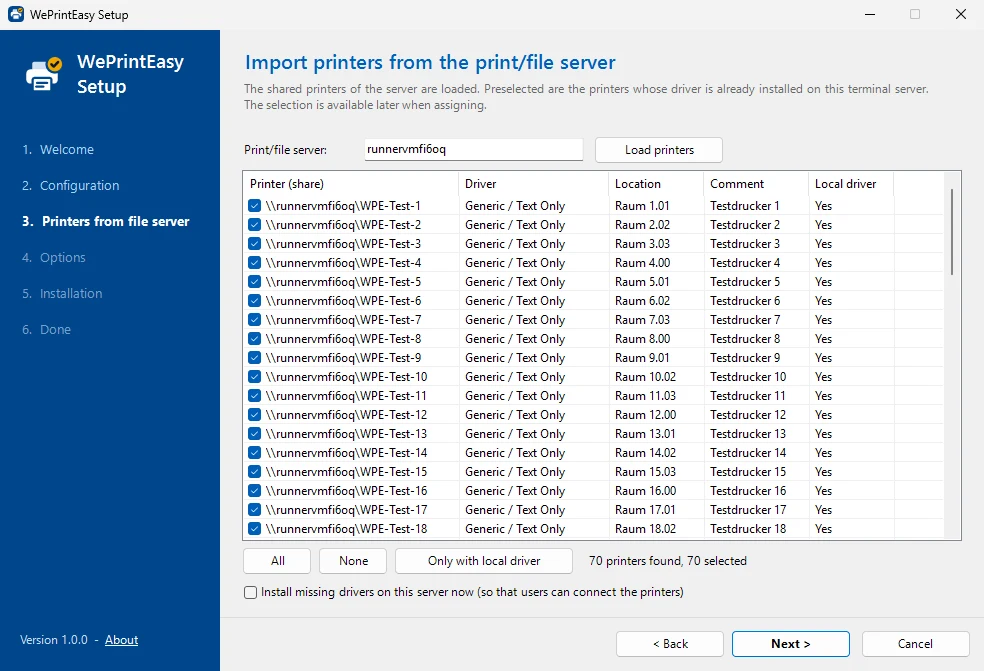
Double-click Setup.cmd on the terminal server and choose English or German. The wizard loads the shared printers of your print server, registers the logon task and sets the recommended policy.
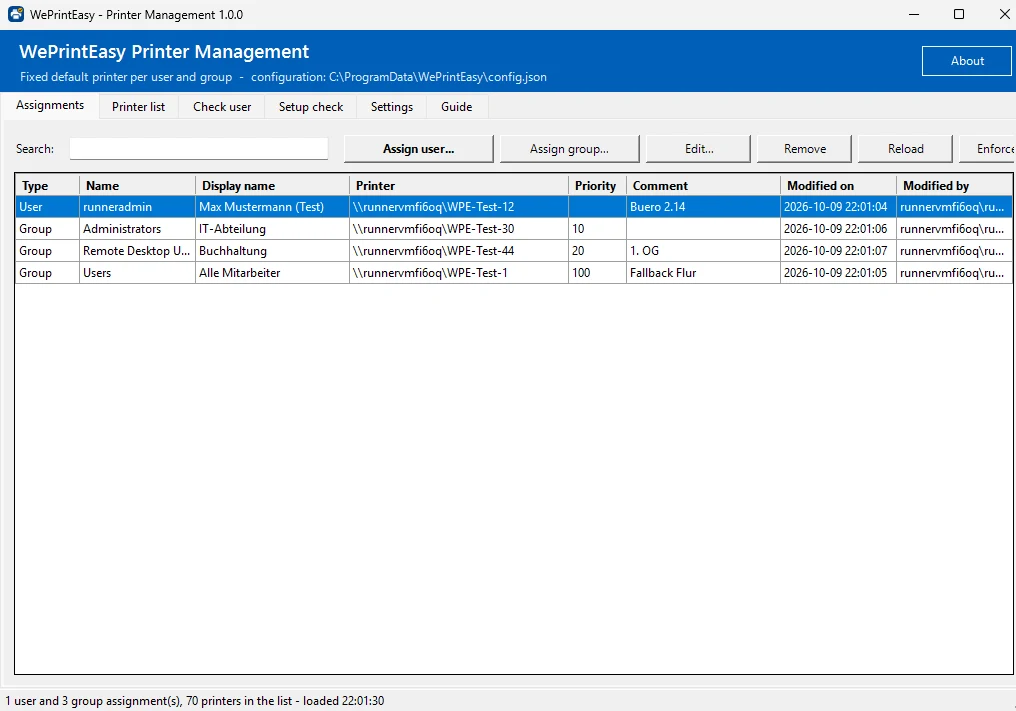
In the admin console, pick an AD user or group from Active Directory and choose the printer. Groups get a priority.
At each logon and reconnect the agent sets the assigned printer and keeps it. Users do not need to do anything.
The timing, in numbers
All three values are defaults and can be changed in the admin console. See the technical details
Features
Everything you need to assign, enforce and troubleshoot default printers on terminal servers.
Assign printers to AD users or groups. Groups have a priority, nested groups are taken into account.
Set at every logon and reconnect – and optionally watched and reset throughout the session.
Wildcards like Brother HL-L2350DW*(redirected* match the printer of a home office PC.
Missing \\server\share printers are connected automatically at logon.
Double-click Setup.cmd: language, printers from your print server, options, installation with live log.
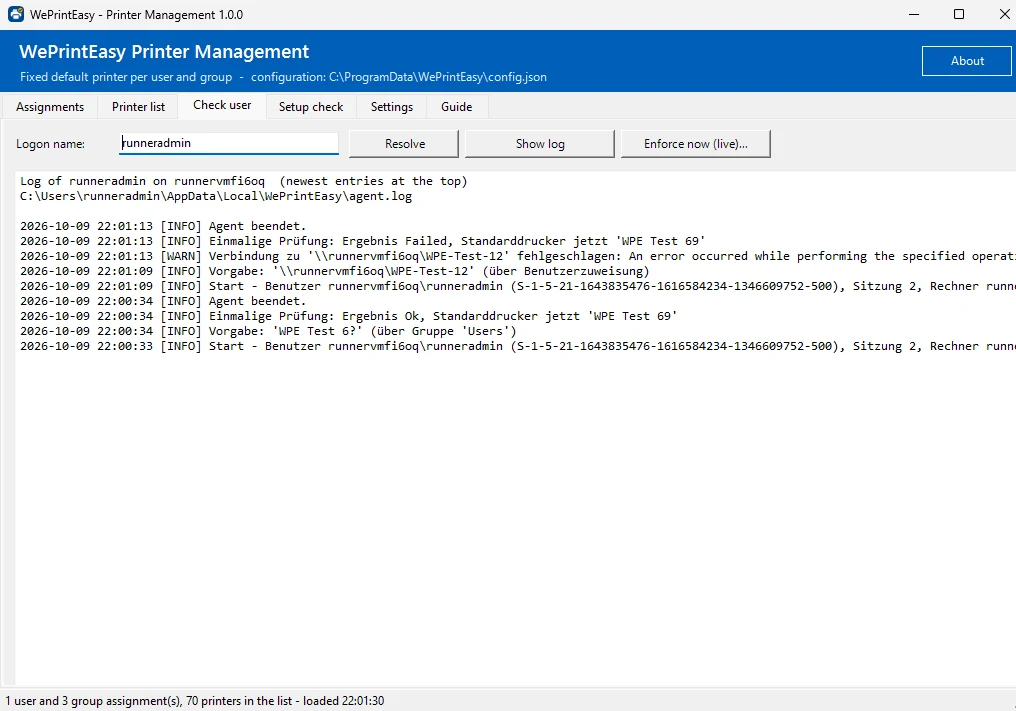
“Enforce now” checks a user on a specific terminal server step by step and shows the result live.
One central config.json on a file share – all session hosts use the same assignments.
Self-signed or from your company CA. Starts with AllSigned – fewer antivirus false positives.
Automate with Get-/Set-/Remove-WpeAssignment and import assignments in bulk from CSV.
Ready to try it on a test server?
Screenshots
Screenshots from the automated test on Windows Server 2025 with 70 test printers as a simulated print server.
Setup wizard
Admin console
Setup wizard
Admin console
Admin console
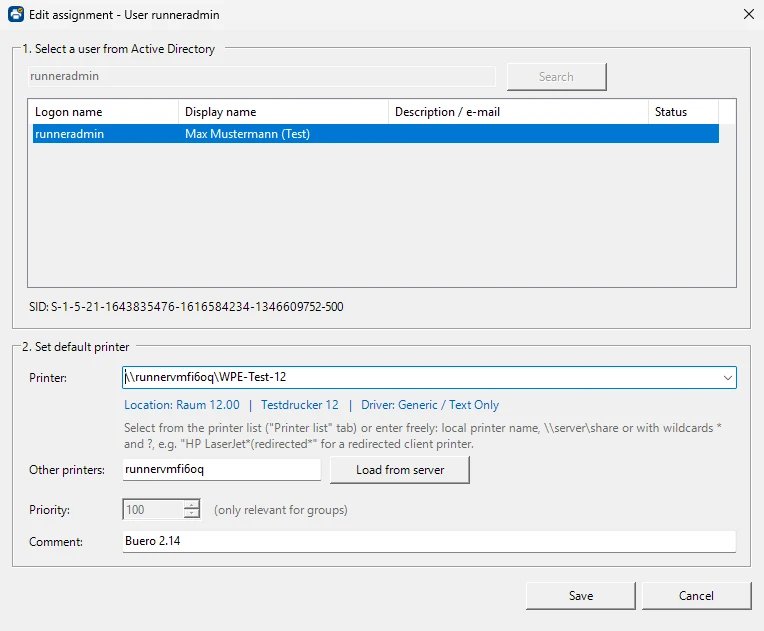
Admin console
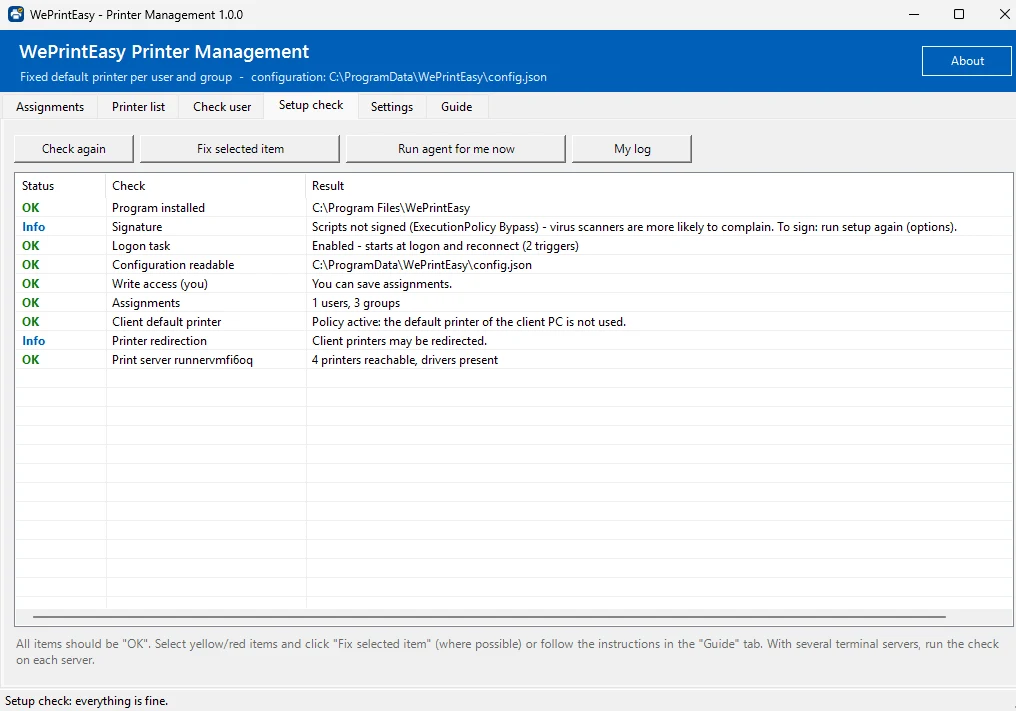
Why admins trust it
Facts, not promises – each point can be verified in the source code.
Only Windows PowerShell 5.1, which ships with Windows Server. No RSAT, no AD schema extension, no client agent.
Assignments are stored with the SID of the AD object – renaming users or groups breaks nothing.
Group memberships (including nested groups) come from the user’s logon token – no AD queries to resolve groups at logon.
Optionally all scripts are Authenticode-signed and started with -ExecutionPolicy AllSigned.
Unit and integration tests run automatically on every push (GitHub Actions). Last run: 90 passed, 0 failed.
Assignments, printer list, signing, editor group and policy are preserved. The configuration is written atomically with a backup copy.
One script removes the tasks, files, shortcut, registry key and a self-signed certificate – optionally also the configuration and the RDS policy.
WePrintEasy runs entirely on your servers and sends no data to us or anyone else.
Not tested automatically: the AD search (there is no domain controller in the test) and connecting a network printer (Windows does not allow a printer connection to the own machine).
Before and after
| Situation | Without WePrintEasy | With WePrintEasy |
|---|---|---|
| Default printer after logon | Whatever Windows or the RDP client decides | The printer assigned to the user or their group |
| Redirected client printer | Can become the session default – with a delay | Reset within seconds during the logon phase |
| “Let Windows manage my default printer” | The last printer used becomes the default | Turned off automatically for every user |
| Assigned network printer missing | The user has to connect it | Connected automatically |
| Several session hosts | Each server is configured separately | One central configuration for all hosts |
| Finding the cause | Which program changed it? | Per-user log: “Default printer set: … (previously: …)” |
FAQ
Yes. You can assign a redirected client printer with a wildcard, for example Brother HL-L2350DW*(redirected* – the session number in the name does not matter. And if you assign a network printer instead, WePrintEasy resets the default printer when the redirected client printer takes over after logon.
No. Changes to assignments and settings are picked up by running sessions automatically, at the latest after one check interval. Only changed AD group memberships need a new logon. Right after the first installation, users log off and on once – just disconnecting is not enough the first time.
A direct user assignment always wins. Otherwise the group assignment with the smallest priority number applies. Nested groups are taken into account. “Check user” in the admin console shows which assignment applies and why.
Windows Server 2019, 2022 and 2025, each with the Remote Desktop Session Host role. The automated tests run on Windows Server 2025. Windows Server 2016 and older are not supported.
Try WePrintEasy on a test server first. Setup takes about two minutes.