Troubleshooting
If a user does not get their printer: these tools and checks show you why – usually within a minute.
On this page
- Enforce now (live)
- The agent log
- Test the agent manually
- Check the scheduled task
- Common problems
- A network printer cannot be connected
- “Printer is not (yet) available” in the log
- The setting does not reach a server
- The user changes the printer and it changes back
- Nothing happens after the installation
- The agent no longer starts after changing a script
- The antivirus software reports the agent
- Group Policy alternative
- Reporting a bug
Enforce now (live)
The quickest way to the cause. In the Assignments tab, select an assignment and click Enforce now… – or in the Check user tab click Enforce now (live)…. Choose the terminal server. The window then checks step by step and shows the result live:
- User in Active Directory and a valid assignment (direct or via a group)
- Terminal server: DNS (with a suggestion for typos), connection, WePrintEasy installed, logon task active
- Does the terminal server read the same configuration as the admin console?
- Is the user logged on? Current default printer, printer connection, is the agent running in the session?
- Starts the agent once immediately in the user’s session (temporary scheduled task, removed afterwards) and shows its log live
- Result: the new default printer – otherwise the reason according to the agent
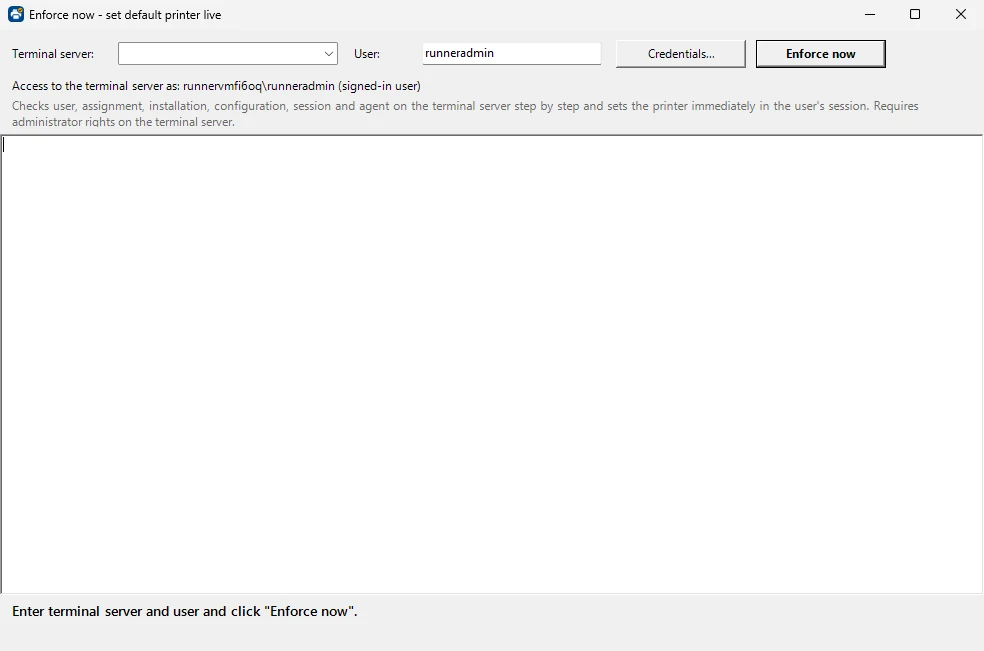
If no agent is running in the session (for example because the user logged on before the installation), Enforce now starts the permanent monitoring for this session as well.
Requirement: administrator rights on the terminal server. Credentials… lets you specify a domain administrator, for example if the admin console runs under a local account. In PowerShell:
Invoke-WpeRemoteForce -ComputerName TS01 -UserName jdoeThe agent log
Every user has a log on every terminal server:
%LOCALAPPDATA%\WePrintEasy\agent.log
C:\Users\jdoe\AppData\Local\WePrintEasy\agent.log
It contains the assignment, every correction and errors. The admin console shows it in the Check user tab under Show log. The log is written in the language set in the configuration; typical entries in English:
| Entry | Meaning |
|---|---|
Target: '…' (via group '…') |
The assigned printer and the assignment it comes from |
No printer assignment exists for this user. |
No assignment applies – the default printer is not changed |
Default printer set: '…' (previously: '…') |
The agent reset the default printer; previously shows what had changed it |
Network printer '…' connected. |
A missing network printer was connected |
Assigned printer '…' is not (yet) available in this session. |
The printer does not exist in the session (yet) – see below |
Session reconnected - logon phase restarted. |
Reconnect detected, the agent checks closely again |
Warnings that would repeat in every round are only logged when they change. At 1 MB the log is moved to agent.log.old.
Test the agent manually
In the user’s session (or your own), run the agent once with detailed output:
powershell -ExecutionPolicy Bypass -File 'C:\Program Files\WePrintEasy\WePrintEasy-Agent.ps1' -Once -VerboseIn the admin console, Run agent for me now in the Setup check tab does the same for your own session.
Check the scheduled task
Open Task Scheduler and look at the task below \WePrintEasy\ (“WePrintEasy Agent”). Enable the task history to see when it started. The task must be enabled and have two triggers: at logon and on reconnect of a remote session. The Setup check tab checks this as well.
Common problems
A network printer cannot be connected
Since the PrintNightmare updates, standard users may not install printer drivers. Install the drivers on the terminal server in advance – for example with Install missing drivers on this server now in the setup wizard or when updating the printer list – or configure Package Point and Print / approved print servers via Group Policy. The Setup check tab warns when a driver of an assigned printer is missing.
“Printer is not (yet) available” in the log
For redirected printers, the client PC is not connected or the name does not match. Use a wildcard (for example Brother HL-L2350DW*(redirected*) and check the exact name with Get-Printer in the session. For network printers, check the share name and whether the print server is reachable.
The setting does not reach a server
Every terminal server must read the same configuration. “Enforce now” shows in step 3 whether the server uses another file. If so, run the setup on that server again with the central configuration path.
The user changes the printer and it changes back
That is the monitoring during the session (default: every 30 seconds). If users should be allowed to choose their default printer themselves, switch off Monitor the default printer during the session in the settings – the printer is then only set at logon.
Nothing happens after the installation
Users must log off and on once after the first installation; just disconnecting is not enough the first time. Assignment changes later do not require a new logon. Changed AD group memberships only take effect after the next logon.
The agent no longer starts after changing a script
With code signing, every change to the installed scripts invalidates their signature and the agent no longer starts under AllSigned. Run the installer or Update.cmd again – it signs the scripts again. The Setup check tab shows the state under Signature.
The antivirus software reports the agent
Some products flag PowerShell started invisibly with -ExecutionPolicy Bypass. Enable code signing. If that does not help, exclude the folders C:\Program Files\WePrintEasy and C:\ProgramData\WePrintEasy. Never exclude powershell.exe itself.
Group Policy alternative
Instead of letting the installer set the RDS policy, you can configure it via Group Policy:
Computer Configuration → Administrative Templates → Windows Components → Remote Desktop Services → Remote Desktop Session Host → Printer Redirection →
“Do not set default client printer to be default printer in a session” = Enabled
Reporting a bug
In the admin console, About → Report a bug on GitHub… opens a pre-filled issue in your browser. The system information it contains has no computer, user, domain or server names; please also remove names from any log excerpts you add.
Download WePrintEasy ZIP with setup wizard, update and uninstall scripts. Free · MIT licence
Download WePrintEasy 1.0.3